FAQs about SafeIT-products
>> SafeIT Desktop Security Suite (incl SafeIT File Encryption & SafeIT File Shredding)
>> SafeIT Secure Disk
SafeIT Desktop Security Suite
1. How do I know that my files are shredded completely?
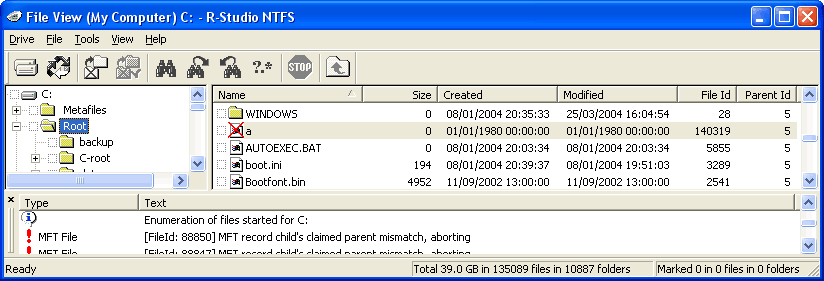
The easiest way to verify that the files are shredded completely is to install a program that can undelete files, such as R-Studio or R-Undelete. By searching for deleted files you can see that the files have been shredded in a way that makes it impossible to restore the files.
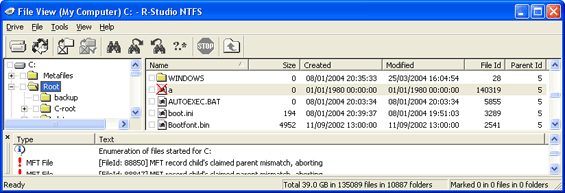
>> Click to enlarge the picture
2. Do you support removable media, such as USB memorysticks and floppy drives?
Yes, SafeIT Desktop Security Suite and SafeIT File Shredding fully supports removable media. It is possible to shred all free disk space as well as shredding individual files and folders. This applies to drives formated with NTFS as well as FAT.
SafeIT Secure Disk
3. Can files on my secure disk be scanned with anti-virus software?
A secure disk can be scanned for virii as long as the disk is open. If the disk is closed the information will be encrypted and the anti-virus scanners will be unable to find anything.
4. Can I use a Secure
Disk from a network drive?
Yes - SafeIT Secure Disk supports networked drives. Simply create (or move) your secure disk to a networked drive and you will be able to use the normally disk *. The traffic between you computer and the secure disk will be automatically encrypted. This is a great improvement from Microsoft's EFS that sends the information in plain text.
5. Can I use Offline folders with my SafeIT Secure Disk?
Simple right-click on a secure disk (or its parent folder) and select “Make accessible offline…”. You will now be able to access your secure disk even if you are disconnected from the network. Synchronisation will automatically be preformed when you reconnect to the network*.
*
Please use caution when you use a secure disk
that is located on a networked drive. Unexpected
errors might occur if you are disconnected
from the network while using the disk. We
recommend that our users evaluated the risks
and benefits of this before storing important
data on a secure disk from a networked drive.
6. How do I move my
Outlook Express-file to my secure disk?
Follow these instructions to protect your
mail in Microsoft Outlook Express.
1. Start by creating a large enough disk for
your Outlook Express-file. Remember to make
it extra big since your mailbox will expand.
Do not log out from the disk after it has
been created.
2. Open Outlook Express and select Tools and
Options.
3. Select Maintenance in the new window that
opens. Click on the button "Store Folder...".
4. The path that is the current path to your
Outlook Express-file.
5. Click on the button "Change...".
Browse to your secure disk in the list that
is displayed (S: is deault)
6. THe files are now being moved to your secure
disk.
7. Restart Outlook Express. Your Outlook Express
file is now encrypted on your secure disk.
Remember to log on to your disk before opening
Outlook Express in the future.
SafeIT
E-mail Shredder for Outlook 2003
1. Can SafeIT E-mail Shredder erase the content
of my Deleted Items when I close Outlook?
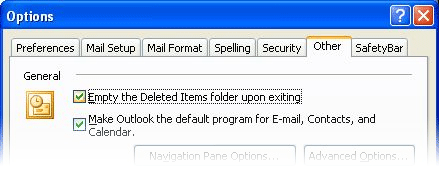
Microsoft Outlook contains a setting for emptying
the "Deleted Items" folder upon
Exiting the application. Since this takes
place before SafeIT E-mail Shredder for Outlook
2003 starts the operation, the content of
the Deleted Items folder will be shredded.
Enable this setting by selecting the menu
"Tools". Click on "Options"
and then "Other". Make sure the
setting "Empty the Deleted Items folder
upon exiting" is enabled. Please note
that you must run the SafeIT Shredder operation
in order for these e-mails to be permanently
deleted.